
Tutorial
Introduction
In this tutorial you will learn how to use Jxls to create an Excel report with data from a list of Java objects.
We will use a list of Department objects representing a department.
The Department is a simple Java bean which looks like this
public class Department {
    private String name;
    private Employee chief;
    private List<Employee> staff = new ArrayList<Employee>();
    private String link;
    // getters/setters
    ...
}
Each department has a list of employees where Employee class is like this
public class Employee {
    private String name;
    private int age;
    private Double payment;
    private Double bonus;
    private Date birthDate;
    private Employee superior;

    // getters/setters
    ...
}
For example you need to create an excel report with all the department and employee data. In addition to show you how conditional formatting is supported in Jxls we are going to highlight employees with a specific payments.
To create an excel report with Jxls you need to go through the following 3 steps
-
Create Excel template
-
Define transformation areas
-
Process transformation areas
In the following sections we will go through each of these steps in detail
Step 1. Creating Excel template
To create a template for our example we need to decide on the report formatting and layout. There are many ways to display a list of our Department data in excel but most of them can be reduced to the following three options
- Display each department one above the other
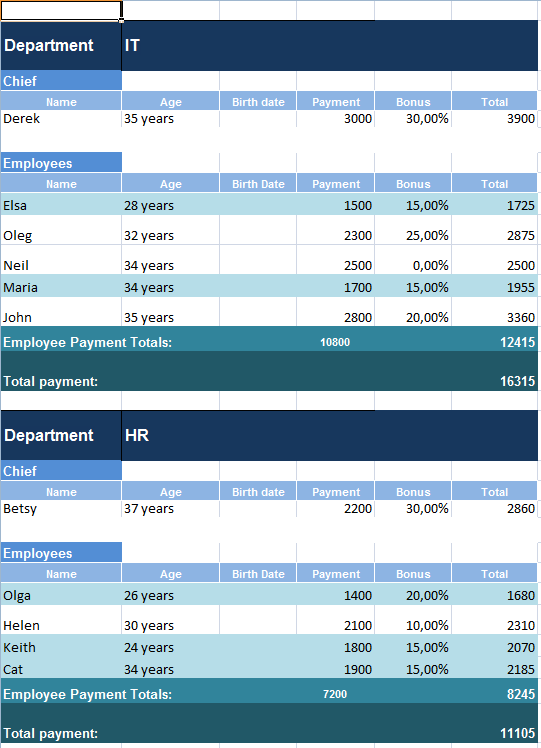
-
Display each department one to the right of the other
-
Display each department on a separate excel sheet
All three cases are supported by Jxls out of the box. The good thing is that you can create a single report template and re-use it to generate reports with different layouts with just a few changes of java code.
Now let’s look at the excel template that we will use in this tutorial. You may download it here

Let’s try to understand what it does.